

Joining or merging data in Power Automate
It’s no secret that i have a background in SQL, and am very used to joins in a variety of shapes and formats. Whenever I need to combine two data sources in Power Automate, into a single one, I always go searching for “Join” in the actions list, and get very excited as it does indeed exist, however it’s not the kind of Join that we know from SQL, it’s more of a concatenate. The full description, according to the documentation is the following:
Use the Data Operation – Join action to delimit an array with the separator of your choice. For example, your flow receives a web request that includes the following array of email addresses: ["d@example.com", "k@example.com", "dal@example.com"]. However, your email program requires addresses to be formatted in a single string, separated with semicolons.
But I am interested in combining two responses into one, taking the parts from the first and the second as I need them, where they share an ID, for instance.
Enter Power Automate expressions and XML!
I am not the founder of this method, in any way, I got inspired on the internet, and have simply written down my understanding of it.
The approach is combining the “Select” action inside Power Automate, and then in the mapping section, we can combine the expressions xpath, xml, json and concat, to first convert our array to xml, and then traverse the xml using xpath, and in this way somewhat force a join or merge to happen.
Let’s break it down, step by step.
Dummy data to try it out with
[
  {
    "Name": "Skills",
    "Id": 1
  },
  {
    "Name": "Thrills",
    "Id": 2
  },
  {
    "Name": "Chris",
    "Id": 3
  }
]
[
{
"Role": "Agent",
"Id":1
},
{
"Role": "Secret",
"Id":2
},
{
"Role": "Puppeteer",
"Id": 3
}
]Object conversion
First up, we want to append the parts of xml structure, to our json object, which is done using concat. The things we’re looking for specifically is “Root” and “Item”. Concat allows us to combine two sources of text, into a single one.
concat('{"Root":{"Item":',
variables('Source Two')
,'}}')
Returns
{"Root":{"Item":[{"Role":"Agent","Id":1},{"Role":"Secret","Id":2},{"Role":"Puppeteer","Id":3}]}}I have a tendency to introduce a “toLower” here, to avoid differences in capitalization, but it is not necessary if we’re looking for case-sensitive matches.
Next up, we will introduce the json expression, to get our concatenated text strings back to being considered an array. You can easily skip the toLower.
json(toLower(concat('{"Root":{"Item":',
variables('Source Two')
,'}}')))
Returns
{
  "root": {
    "item": [
      {
        "role": "agent",
        "id": 1
      },
      {
        "role": "secret",
        "id": 2
      },
      {
        "role": "puppeteer",
        "id": 3
      }
    ]
  }
}
Finally, we will convert the whole thing to xml, using the xml expression.
xml(json(toLower(concat('{"Root":{"Item":',
variables('Source Two')
,'}}'))))
This approach will leave us with an xml object, that can be referenced using the xpath expression and that looks like the following:
<root><item><role>agent</role><id>1</id></item><item><role>secret</role><id>2</id></item><item><role>puppeteer</role><id>3</id></item></root>The final setup is to use xpath, to return the items you’re interested in, essentially.
The reference for the expression can be found here, and generally it takes 2 inputs. First it wants the xml to traverse, and second is the path to follow. In the example here, I use toLower when converting my json object to xml, and therefore I also use toLower, when I traverse it. We’ll always introduce concat, with the “base” of the xml, i.e. Root/Item, and then what we’re looking for, in this case id, and then followed by the location in our json array, that holds the id to join or merge on. Finally it is followed by the item we’re interested in returning, in this case the Role.
xpath(xml(json(toLower(concat('{"Root":{"Item":',
variables('Source Two')
,'}}')))),
toLower(
concat(
'string(//Root/Item/
id[text()="',
item()?['id'],
'"]/../Role/text())')))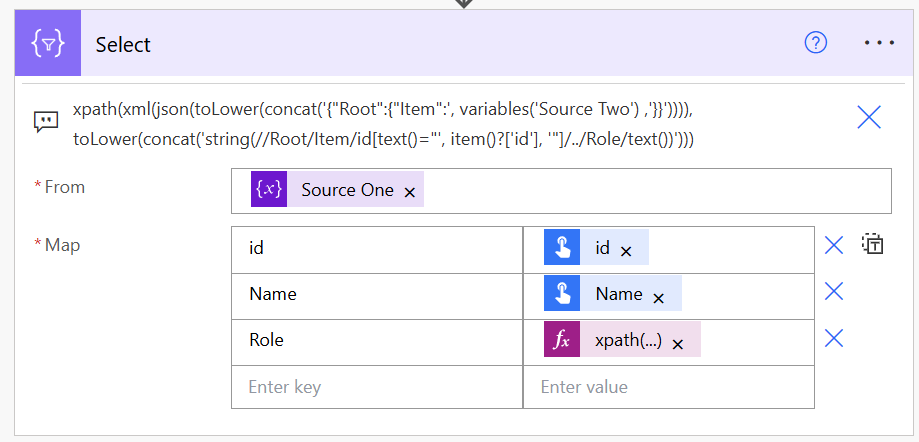
And that’s it really, with this approach we get some highly performant joins, without using Apply To Each etc., and thereby the ability to merge multiple data sources to one. We don’t need to use all the intermediate steps, we can simply skip ahead and insert a Select action, and use the whole xpath,xml,json,concat statement in there in the mapping section.
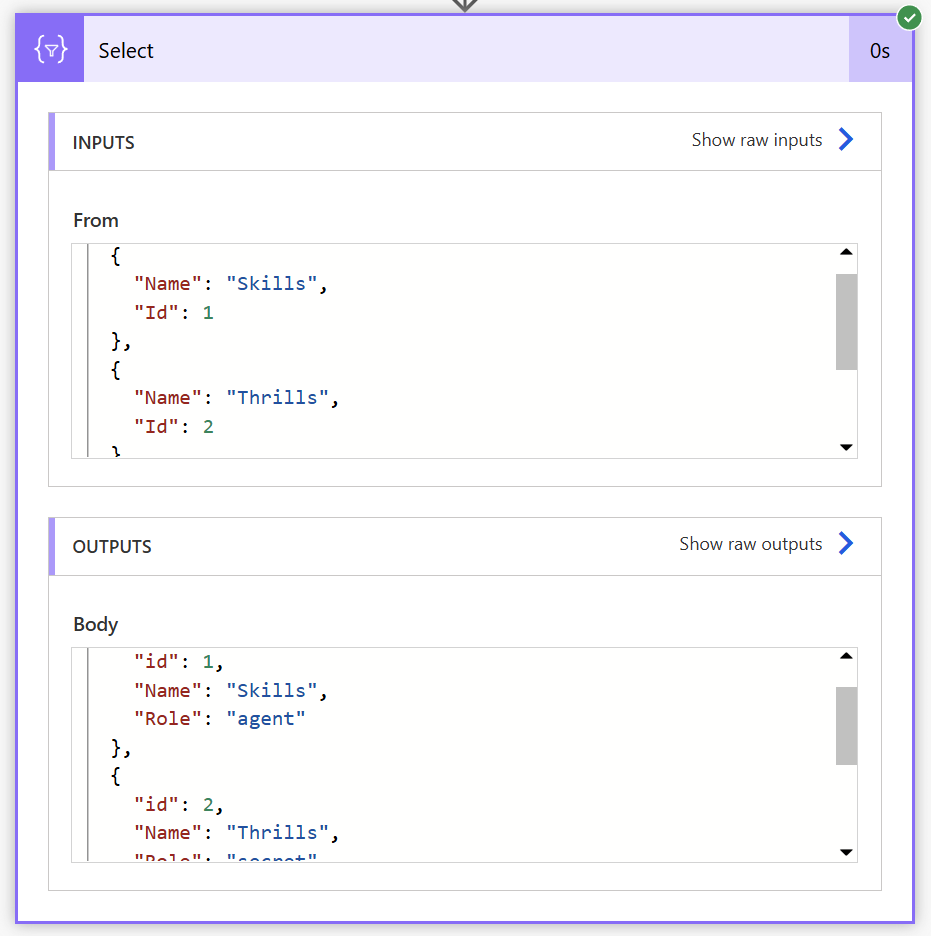
Closing Thoughts and a very important note
When working with this approach in Power Automate, currently (3rd of November, 2025) using the new designer will result in Power Automate identifying invalid expressions, and thus being unable to save. It works completely fine in the old designer, and that’s why the screenshots are from the old one. Once the Select has been created, and the xpath has been accepted by the old designer, you can swap to the new designer and work from there again, however, if you interact with the Select action or wherever you have your xpath expression, Power Automate might want to re-validate that, leading to you being unable to save, so please do be careful when using this, to avoid losing work!
To me it is still big time worth it, as this patches a gap to what I am used to with joins in SQL, and performance is truly there. I am not sure who first came up with this method, but absolute credit to them, I know it wasn’t me.